Custom Indicator Alerts

Introduction
The Custom Indicator Alert feature enables users to set up personalized notifications based on self-created or customized indicators. It monitors market data in real time, and triggers alerts automatically when the predefined conditions of the custom indicators are met—such as specific price movements, trend shifts, or volume changes. This helps users stay updated on key market signals without constant manual monitoring, supporting timely decision-making aligned with their trading style and strategies.
How to set up alerts
There are several ways to set an alert:
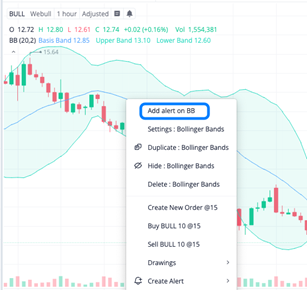
1. Right-click on your chart, and select the alert option from the pop-up menu to start the setup process.
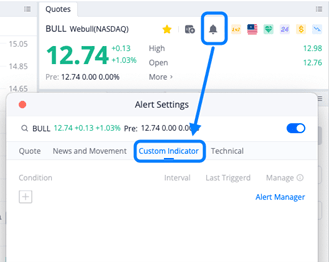
2. Locate the Quotes widget in your interface, where you can find an option to create an alert directly within this component, linking to the specific data you’re monitoring.
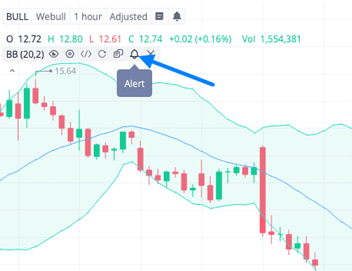
3. Access the menu associated with your used indicators. Within this menu, there is a function to set up an alert tied to the indicator’s data.
Note: If you modify the script code or parameters of the associated indicator, the existing alert will continue to use the original settings and script to trigger notifications. If you want the alert to reflect the updated indicator configurations, you will need to create a new alert instead of editing the existing one.
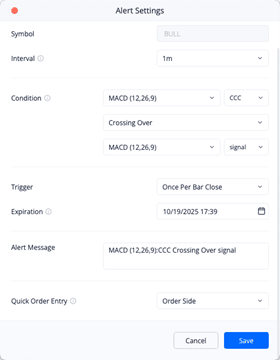
For the alert configuration, you need to complete the following settings:
- Select the trading instrument for which you are setting the alert.
- Choose the interval on which the alert will be triggered.
- Set the condition that will trigger the alert. You may apply conditions based on any custom indicators.
- Select the frequency at which the alert will trigger.
- Set the expiration period for the alert, up to a maximum of one month. Note that the alert will automatically close once triggered
- Enter the alert message. A message will be automatically generated based on your other settings, but you may also customize it.
- Quick Order Entry is not designed to automate trading. It opens the order window when conditions are met, pre-fills your settings, and only requires a click to execute. This helps save time on order input, allowing you to focus on trading decisions.

All Comments